![AmTrav_White_RGB.svg]](https://www.amtrav.com/hubfs/AmTrav_White_RGB.svg)
Once your travelers have booked via Gather, their spend data automatically populates in your Travel Reports and their itineraries automatically populate in your Tracking & Safety reports.
Need to share an arrival or departure manifest with your ground vendor so they can plan ground transfers? Or need to see when everyone's arriving and departing so you can order the correct number of places for your welcome dinner and farewell lunch? Here's how to get that data.
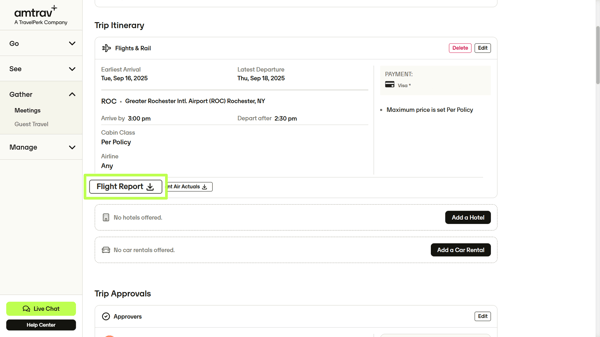
Option 1: use the Flight Report in Gather, it's in your meeting and reflects the latest status of every flight booking for that meeting.
Option 2: access your arrival and departure manifests.
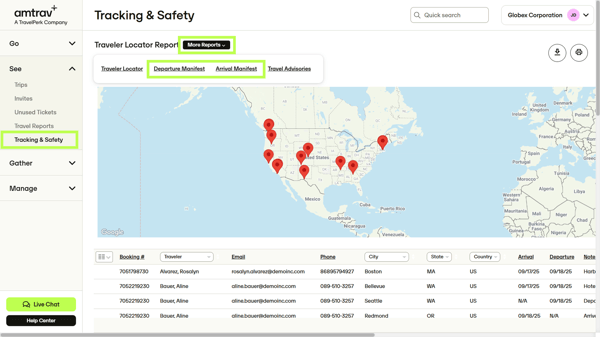
Step 1: Navigate to Tracking & Safety under See in your lefthand navigation bar, navigate to Arrival Manifest (or Departure Manifest) under More Reports at the top of the Tracking & Safety (Traveler Locator Report) page:
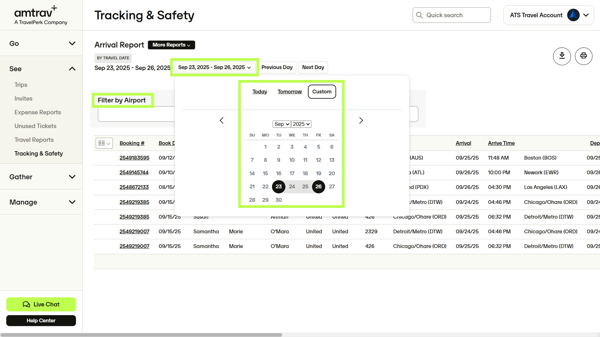
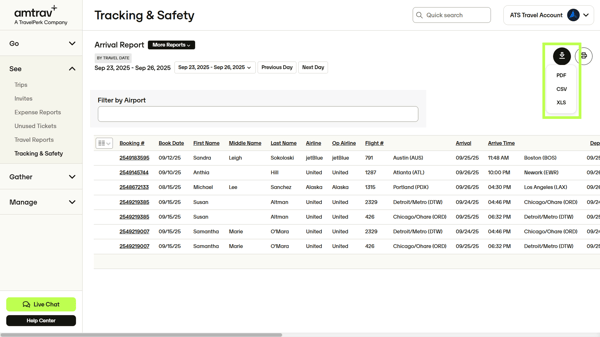
Step 2: Select your relevant travel dates by hovering over Today (or the date range) then Custom (important: add a couple days before and after the specific travel dates to make sure you capture all your travelers, even those arriving or departing a little early or late!), then you can view, sort and filter your Arrival Manifest (and Departure Manifest) data.
Also filter for the arriving/departing airports (if your event is in Atlanta, then ATL).
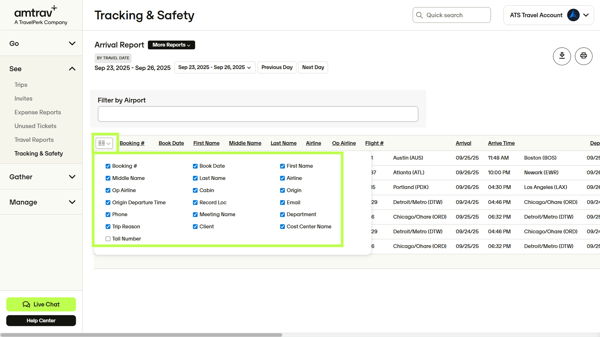
Step 3: If you have optional billing fields that you set in your Gather meeting, you can turn those on in your data so you can filter or sort for them. Hover over the hamburger menu then click to turn the field on (from red to green).
Step 4: You probably want to download that data -- you can print to PDF or download an Excel or CSV copy of your data in the righthand corner.
Note that this process works the same for the Arrival Manifest and the Departure Manifest. Don't see the itineraries you're looking for? Try making the date range a little earlier and a little later.