
Overview of AmTrav documents including where to find them, when to use them and how to read them.
Each document (definitions):
- Invoices: Invoices are receipts showing details for each payment. Invoices are the documents that should be used for expense reports.
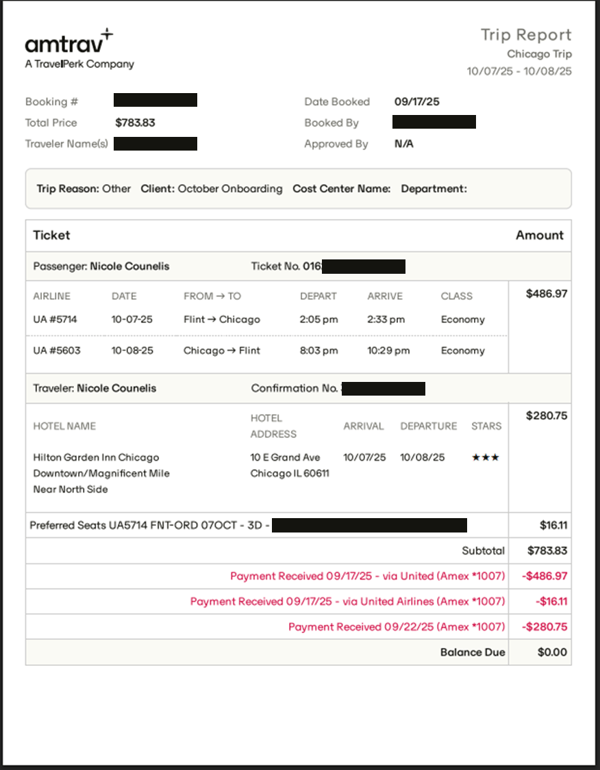
- Trip reports: Trip reports are a hybrid of invoices and confirmations showing more itinerary details than invoices show and more cost information than confirmations show.
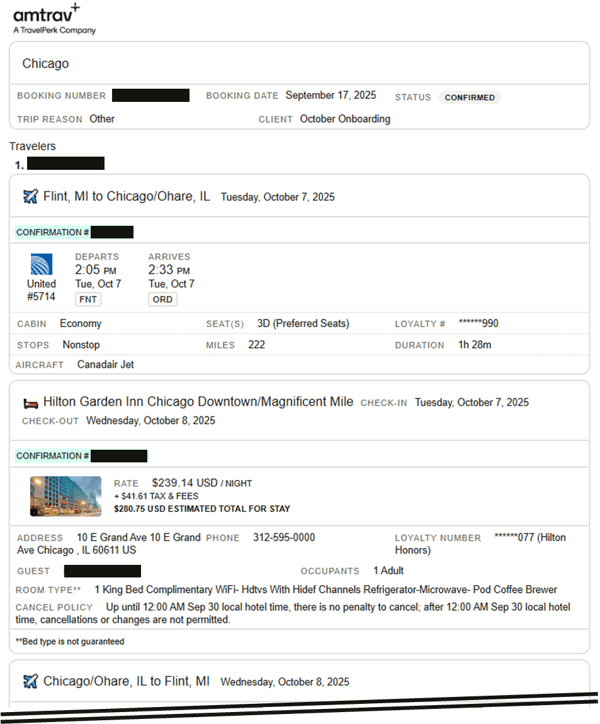
- Confirmations: Trip confirmations show itinerary and traveler details including exact details like the assigned seat, loyalty numbers, hotel room type and cancelation policy, terms & conditions from suppliers for the trip, etc.
Summary of where to find each document:
- Find invoices on the Trips page for any trip (future, present or past), Quick Search bar at the top of the AmTrav page, and in the Credit Card report. You can also have invoices automatically emailed to your inbox.
- Find trip reports on the Trips page for any trip (future, present or past), Quick Search bar at the top of the AmTrav page, and in the Total Trip report.
- Find confirmations in your email (sent from AmTrav), you can also email or print the confirmation from the Trip Details page for each trip (select View Trip on the Welcome page or View/Modify on the Trips page), search by booking number in the Quick Search box at the top of the page, or find the Trip Report on the Trip Details page.
Step-by-step accessing invoices and trip reports
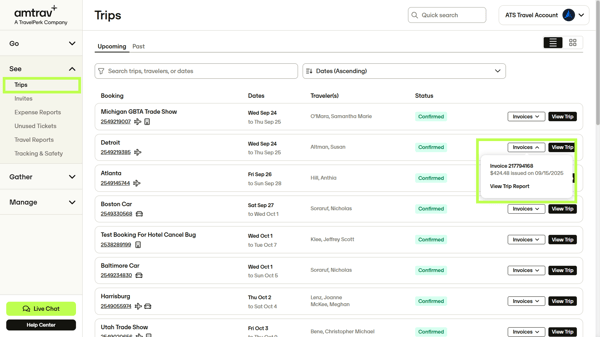
Step 1: After logging into AmTrav, navigate to your Trips tab, and find the booking you would like to view. If you know the booking number already, you can use the search bar at the top to search by booking number.
Step 2: Click the drop down button named Invoices on the right. This will display all of the associated invoices and invoice numbers as well as the trip report.
🚧 IMPORTANT: DO NOT USE TRIP REPORTS FOR OFFICIAL ACCOUNTING PURPOSES –use invoices only.
Understanding trip reports
Trip reports provide a quick overview of the booking and its parts, including payments and estimated payments. In this example, the booking contains a round trip flight and a hotel stay. You can see the subtotal at the bottom, as well as the payments received in red. Please note, payments are reflected on invoices, invoices should be used for official accounting purposes (expense reports) instead of trip reports.
Example trip report
Note that a trip can have multiple invoices if there are payments, changes or refunds made in different transactions:

Understanding invoices
Invoices serve as official financial records (receipts) for payments made through AmTrav and can be used for accounting and expense tracking, tax and compliance, billing clients, and more. How to retrieve invoices in AmTrav.
Invoice for flight payment made through AmTrav
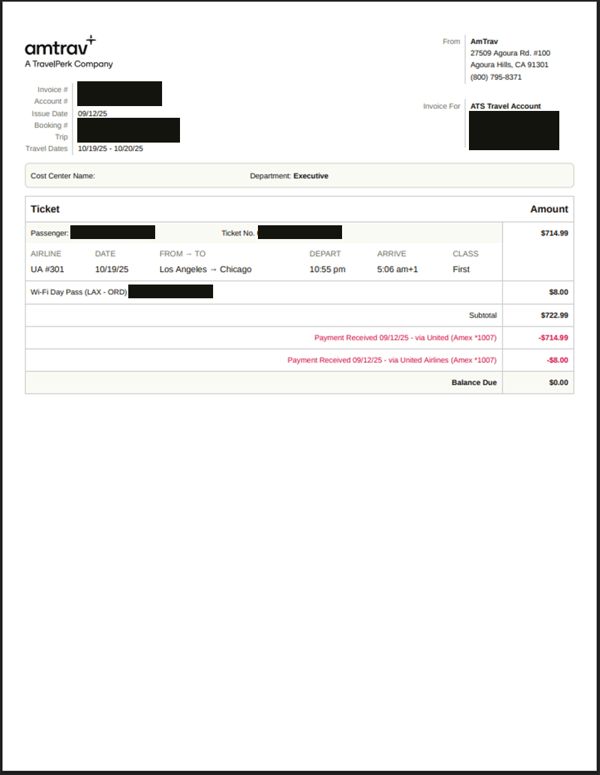
Note that while hotel and car rentals can be booked through AmTrav, most hotel and car rental payments are made directly with the hotel or car rental at checkin and the end of the stay or rental. Thus most hotel and car rentals (with the exception of hotels paid through AmTrav) do not appear on AmTrav invoices, you'll need to submit a folio from the hotel and receipt from the car rental company to account for those charges.
Understanding trip confirmations
Trip confirmations share detailed itinerary data for each trip, including flight details and seat assignments, supplier confirmation numbers, fare and rate rules, and more. Trip confirmations are available in the AmTrav app, are emailed our for every trip and can be retrieved from the Trip Details page (here's how).
Trip confirmation for trip booked through AmTrav:
Summary
- You can search by invoice number and booking number.
- Or - on the Trips page, find the trip you looking for, and click the drop down button on the right named Invoices to view all invoices and the Trip Report.
- Do not use trip reports or confirmations for official accounting purposes. They serve as an overview for the trip and its components. Use trip reports to identify the payment you would like to find an invoice for.
- Each payment contains its own invoice and unique invoice number, however, all invoices within the trip will be linked using the same booking number.