
Step-by-step instructions to set parameters, policies and payments, and invite your travelers to book group air travel
AmTrav Gather makes booking group air travel within your policies and parameters easy, while giving your attendees the itinerary choice they want. A Gather meeting (group air) has four stages:
- Set up your Gather meeting and invite your attendees (covered in this article).
- Your Gather attendees book themselves within your parameters and policies (see how they book here).
- See every dollar spent and every itinerary booked (updated with the latest changes) in AmTrav reports (see more here).
- Your Gather attendees travel, with any help they need from AmTrav before, during and after travel (discussed here).
Note: Check out the Keys to Gather Success article for useful tips on setting travel policy and payments that you can use in Gather.
So let's set up a Gather meeting! Note that these instructions are very thorough, but you'll be able to set up a Gather meeting in two minutes or less!
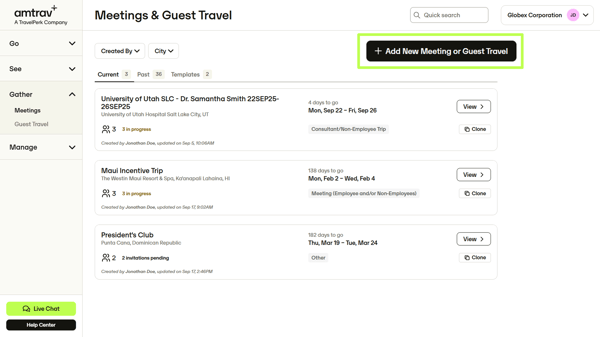
Step 1: Navigate to the Gather homepage (Meetings or Guest Travel) and click + Add New Meeting or Guest Travel:
Step 2: Time to set up your group air meeting:
- Give your group air meeting a Name
- Select the Meeting Type from the dropdown menu (note: this is just for categorization, doesn't change what you can do with your meeting)
- Set the meeting Start and End Dates and Times
- Set your meeting Location (you can set a city, one of your Company Locations set in your Company Settings, an address, or a landmark like the Empire State Building)
- Add any special instructions for AmTrav Travel Advisors (who to contact with questions, how to handle traveler inquiries, etc.) and invited travelers. Instructions for AmTrav Advisors are visible to Advisors and planners (you), instructions for travelers are displayed to travelers.
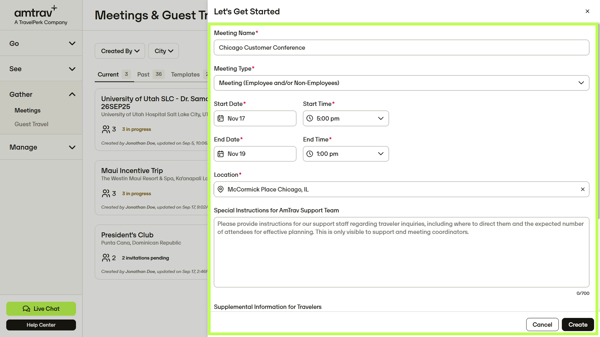
Then click Create to create your group air meeting (note that you can come back and update these fields at any time).
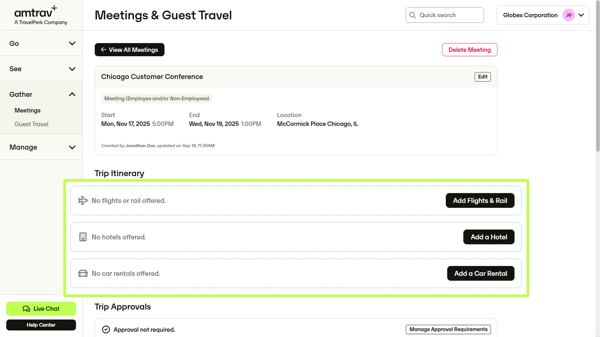
Step 3: Configure your Trip Itinerary parameters, as you need them. (Each of these is optional: need a flight and hotel but not a car? That's fine, just set "Add Flights & Rail" and "Add a Hotel" but not "Add a Car Rental," your attendees will be able to book a flight and hotel but not a car rental through your Gather invitation.)
Details on each Itinerary component:
- Add Flights & Rail: Set the parameters, policies and payments for any flights and rail itineraries you'd like attendees to book. Additional details about each flight and rail field are here. Once you're done click Save, then you'll see a summary of the flight policies and parameters in the Meeting and you can edit the flight settings or remove the flight at any time from the Meeting.
- Add a Hotel (optional): Set the parameters, policies and payments for any hotels you'd like your attendees to book. Additional details about each hotel field are here. Once this is done click Save, you'll see a summary of the hotel policies and parameters in the Meeting and you can edit the hotel settings or remove the hotel at any time from the Meeting. Need help setting up a room block? Contact your AmTrav Relationship Manager, they're ready to help.
- Add a Car Rental (optional): Set the parameters, policies and payments for any car rentals you'd like your attendees to book. Additional details about each car rental field are here. Once this is done click Save, you'll see a summary of the car rental policies and parameters in the Meeting and you can edit the car rental settings or remove the car rental at any time from the Meeting.
Step 4: Configure your pre-trip Approvals in Manage Approval Requirements or Edit (more info about approvals in AmTrav):
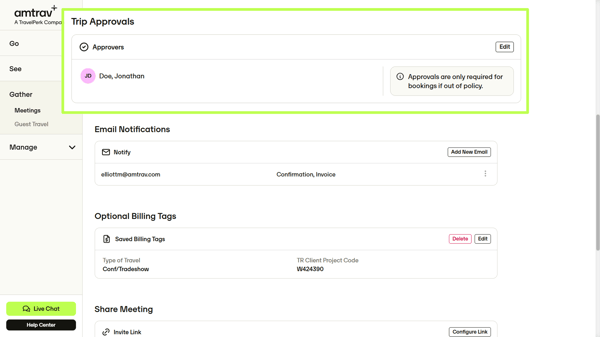
You can:
- Specify whether pre-trip approval is always required (Yes), never required (No), required only if an attendee picks out-of-policy itinerary or rate options (Only if Out of Policy), or have the approval follow the travel policy to which the traveler is assigned in Gather (Per Policy).
- Specify who can provide the approval in Add Approver, selecting from any registered Administrators on your account plus any Coordinators who have access to Gather on your account (here's how to give Coordinators access to Gather), or again following the approvers in the policy assigned to the traveler in Gather (Per Policy).
- Note that the Approvals set in Gather override the approval rules in travel policies selected for Gather invitees. For example if you select "No" approval required but specify a policy with strict approval requirements for an invited traveler, no approval will be required on that traveler's booking because "No" approval was specified. Likewise if "Yes" approval is required but specify a policy with no approval required for an invited traveler, approval will be required on that traveler's booking because "Yes" approval was specified.
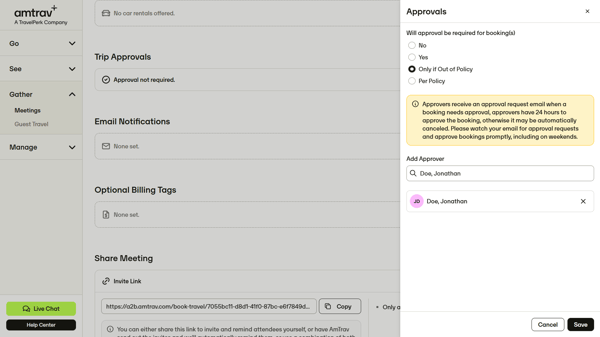
Once this is done click Save, you'll see a summary of your approval requirements in the Meeting, you can edit or remove the approval settings at any time from the Meeting.
Reminder: approvers have 24 hours to approve bookings in AmTrav, otherwise the bookings are subject to cancel by suppliers.
Step 5: Want others on your team to know about these bookings or invoices? Add Email Notifications, click Add New Email then provide the recipient's email, specify if they should receive the booking confirmation, invoice or both. (The traveler will automatically receive their own email confirmation.) Once you've entered each recipient click Save to add that recipient.
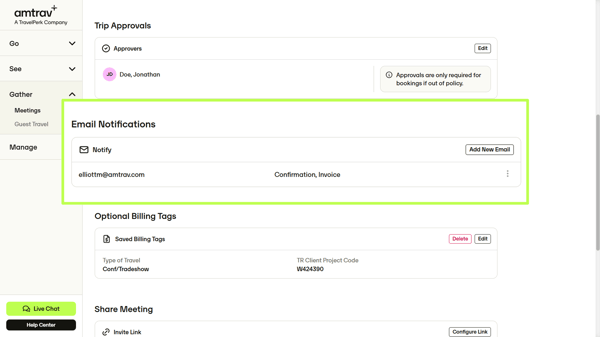
Step 6: Set the billing fields on your Gather meeting booking in Set Billing Tags or Edit:
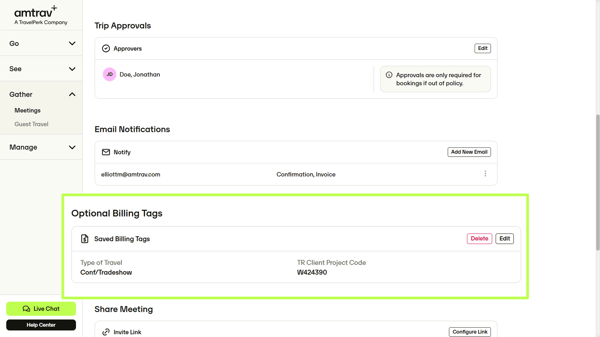
Billing Tags (more info about billing fields) are a great way to add labels or identifiers to your bookings so you can see those identifiers later in your Travel Reports. When you set the Billing Tags for your travelers here, they don't need to enter them themselves when they book.
Once this is done click Save, you'll see a summary of your Billing Tags in the Meeting, you can edit or remove the fields at any time from the Meeting.
Step 7: Time to add your travelers.
Click Add Attendees to add each group air meeting attendee, then set each parameter. Additional details about each Attendee field are here. Once this is done click Add, you'll see a summary of each attendee in Who's Going, you can see whether they've RSVPed and booked, edit or re-send their invitation that you set here, or delete their invitation.
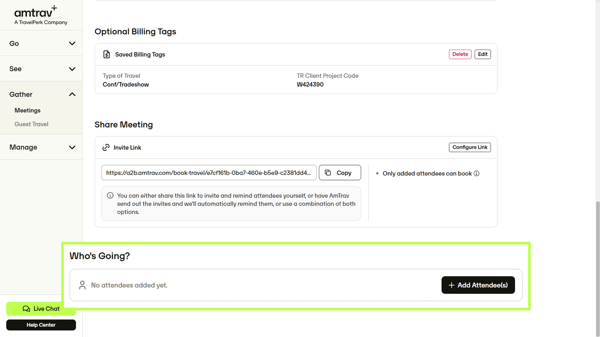
Step 8: It's time to configure the invitation to your travelers! You have options.
Option one, you can use the Invite Link (click Copy): copy that link then share it with your invited travelers via your own email, text or link (in an event registration page, for example).
Note that you have the option to Configure Link, you can give access to only attendees added in step 7 under Who's Going ("attendee list only") following the policy and companions assigned to each traveler, or give access to anyone with the link ("anyone with the link"). AmTrav recommends using "attendee list only." If you use anyone with the link, we recommend that you require approval on all bookings to review and approve each attendee and booking.
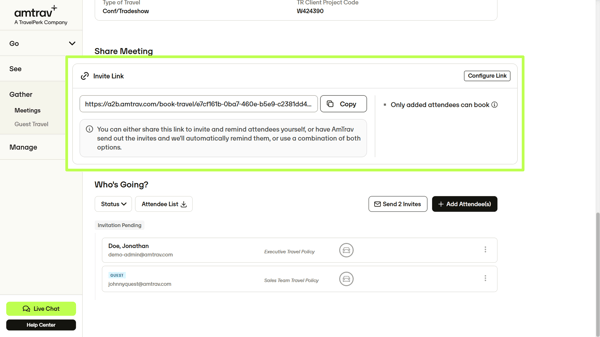
Option two, you can click Send Invites then customize your invitation:
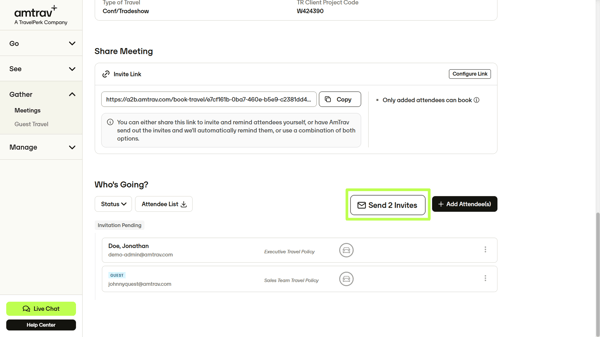
- You can see who the invitation is going to in the To field (note that you can't edit emails from here, an individual email will go out to each listed attendee's email address -- attendees will not be able to see other attendees).
- Set the From Name that's displayed in your recipient's inbox, this field automatically populates as your account name but you can update it to be your name or your name at the company ("Elliott at Globex Corporation").
- Want to get a copy of the invitation or send the invitation to a second person? Set that email (or emails) in the CC field.
- Edit the email Subject that's displayed in your recipient's inbox if you'd like, this field automatically populates as "You're Invited" with the Gather meeting name that you specified in Step 2.
You can see a preview of your email on the right, including the meeting name, the start and end dates and times, the meeting location that you set in Step 2 above, and the Book your trip link that your invitee will use to access AmTrav and book through Gather.
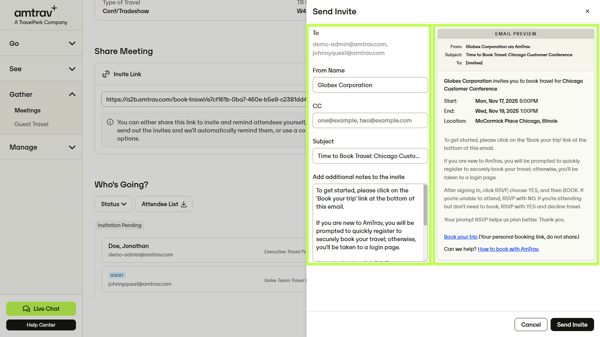
Once your invitation is done click Send Invite at the bottom, each attendee will receive an individual email (attendees can't see each other), you'll see the traveler's status update to In Progress in Who's Going, you can see whether they've RSVPed and booked, edit or re-send their invitation that you set here, or delete their invitation. (More info: how to resend a Gather invite or book on behalf of a Gather traveler.)
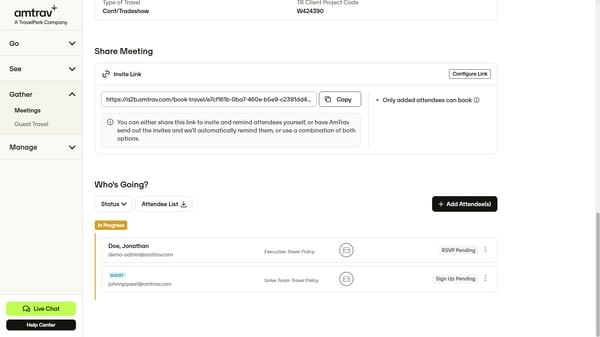
That's it! Up next, your attendees will receive the invitation emails you configured and can access AmTrav Gather to book. Again in the Who's Going section of your Meeting page you can see whether your attendees have RSVPed and booked, add additional attendees and resend invitations as you need to.
Still have questions or feedback after reading this article? Check out articles about Gather in the Knowledge Base or ask your Relationship Manager, they're ready to help.